

To download a previously-generated export file of Member Overrides:
-
Select Members from the top navigation bar, then select Segments from the side navigation menu. The Segments screen is displayed.
-
Search for and select the desired Segment (see
-
Select the Member Overrides tab.
-
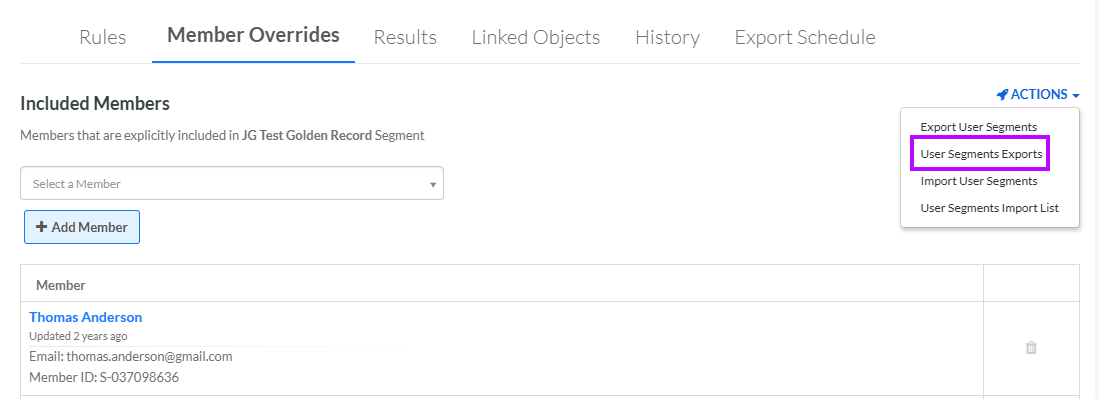
From the Actions drop-down menu, select User Segment Exports. The User Segment Export Definitions pop-up window is displayed and populated with a list of all existing User Segment Exports.
-
From the Action column of the desired export, click the Download icon. The platform downloads the file to your local PC.
